Create your first note
In mt everything is a markdown note.
Markdown by itself gives us a lot of power. We can use headings, lists, links, images. Here's a nice cheatsheet for markdown syntax: Markdown Cheatsheet.
So let's create a simple note. Click on the pencil icon, and write something like this:
# Hello, world!

This is my first note in `mt`.

## Why am I excited?

1. Because it's a markdown note.
2. I can link it to other notes.
3. I can tag it with tags.

#intro
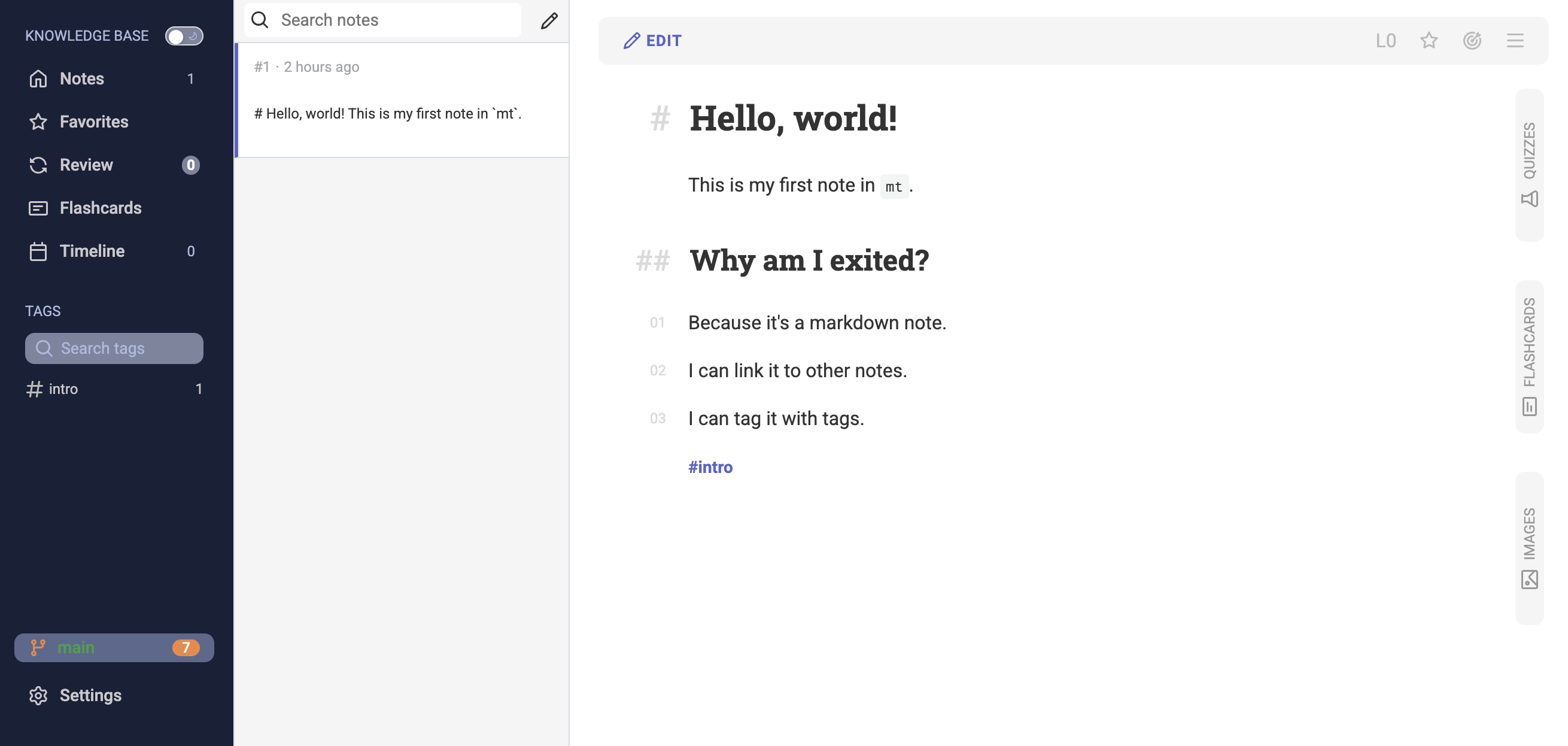
A note can have a tag (like #intro) anywhere within its body. While I prefer to put them at the end, you can put them anywhere. Once you click save, the tag list on the left will update and show you the new tag. In order to filter notes by tag, just click on the tag in the list.
Linking notes
Links are a first-class citizen in mt, and they are the key to building a good knowledge graph. A link to another note can be created like link to another note. Here 123 is the id of the note you want to link to. Ids are unique and sequential. You can check the ID of a note in the notes section.
Let's add a second note, and link it to the first one:
# My second note

This is my second note.

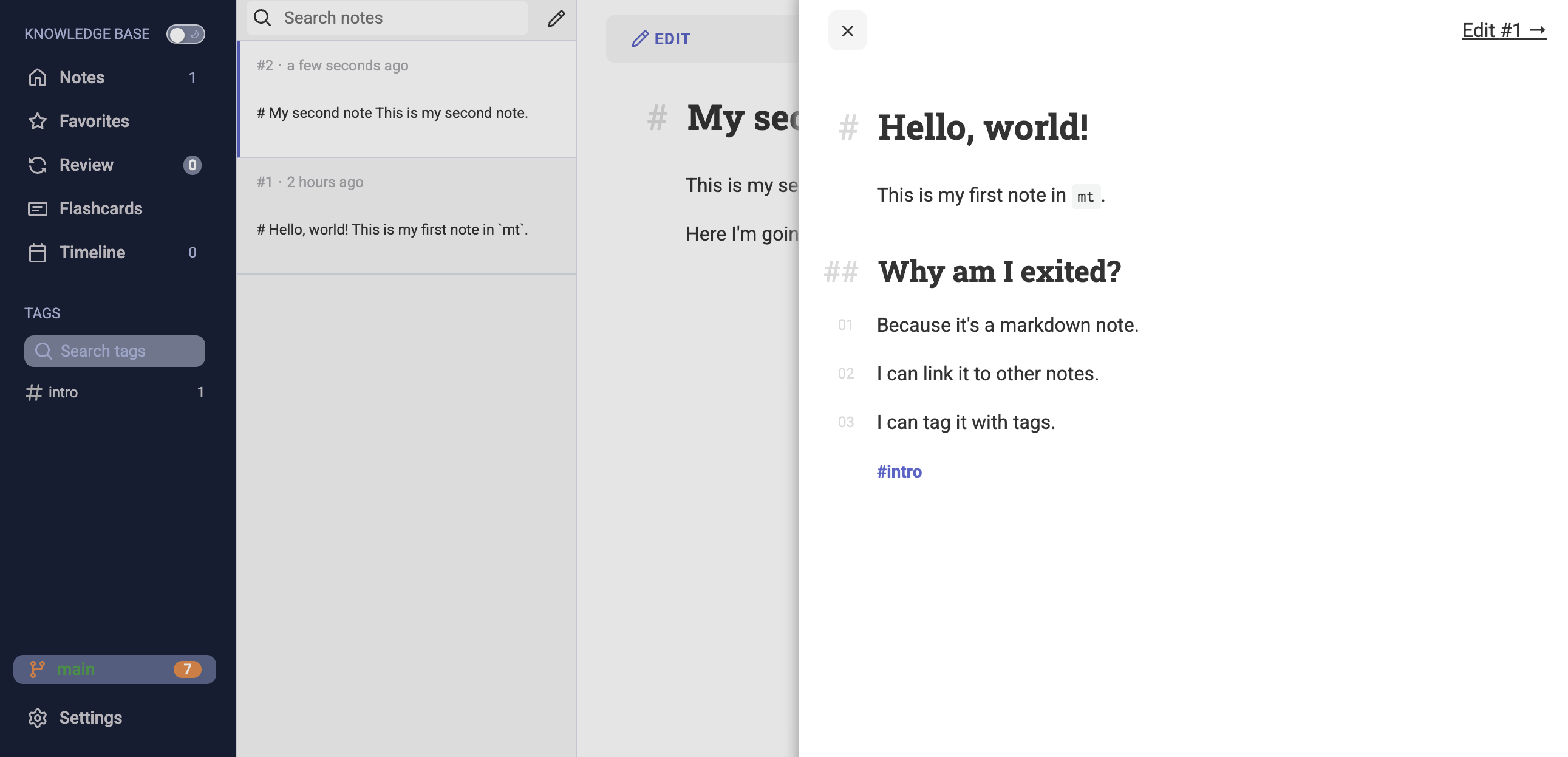
Here I'm going to reference [the first note](introduction.html).
Once you add the link, you can click on it, and it will show up in a preview on the right. From that preview, you can click on the "Edit" link, and it will take you to the note.
Storage
Now that we have created our first notes, how are they stored in the file system?
By default, mt stores notes in the ~/mt directory. If we list the files we will see:
notes/1_hello_world.md
notes/2_my_second_note.md
So the note filename starts with the note id, followed by an underscore, and then an underscored version of the note title (first # header). You can edit the files in any other editor. Just make sure to not change the id, as some other notes might be linking to it.
You might also want to initialize a git repo in this directory. I back up my notes to a private GitHub repository, which makes it easy to sync them across devices.
Changing the storage directory
You can override this by setting the MT_HOME environment variable to a different path.
It also comes handy, as you can have multiple knowledge bases, and you can switch between them by changing the MT_HOME variable. For example, right now I have started mt with MT_HOME=./docs, because this is where the docs project is located.
Next
Now, let's move on to the next chapter and learn how reviewing works.